An engineer at Tinybird already built a MCP server so it’s good to follow along and grasp the nuances and intricacies in leveraging MCP. But more time-saving to go to MCP github.
Before jumping to server.py, go over concepts again
- decorator, decorator such as @measure_time is classical, in class, note @property is a built-in decorator that transforms a method into a property of a class, allowing you to access it like an attribute rather than calling it as a method. for example
class User:
    def __init__(self, first_name, last_name):
        self._first_name = first_name
        self._last_name = last_name

    @property
    def full_name(self):
        return f"{self._first_name} {self._last_name}"
2. handler, A handler is a function that “handles” or processes specific events or requests. for example, this handler is decorated, note handler process a request or event, decorator modify or enhance a function.
@server.call_tool()
async def handle_call_tool(name: str, arguments: dict) -> list[types.TextContent]:
    """Handles tool execution requests"""
    if name == "list-data-sources":
        response = await tb_client.list_data_sources()
        return [types.TextContent(type="text", text=str(response))]
    elif name == "get-data-source":
        response = await tb_client.get_data_source(arguments.get("datasource_id"))
        return [types.TextContent(type="text", text=str(response))]
3. primitives, python primitives are basic data types, there are number, text, boolean and None primitives, they are immutable, fixed memory size, in contrast to complex data types such as list dictionary, class and objects. in MCP, there are protocol primitives
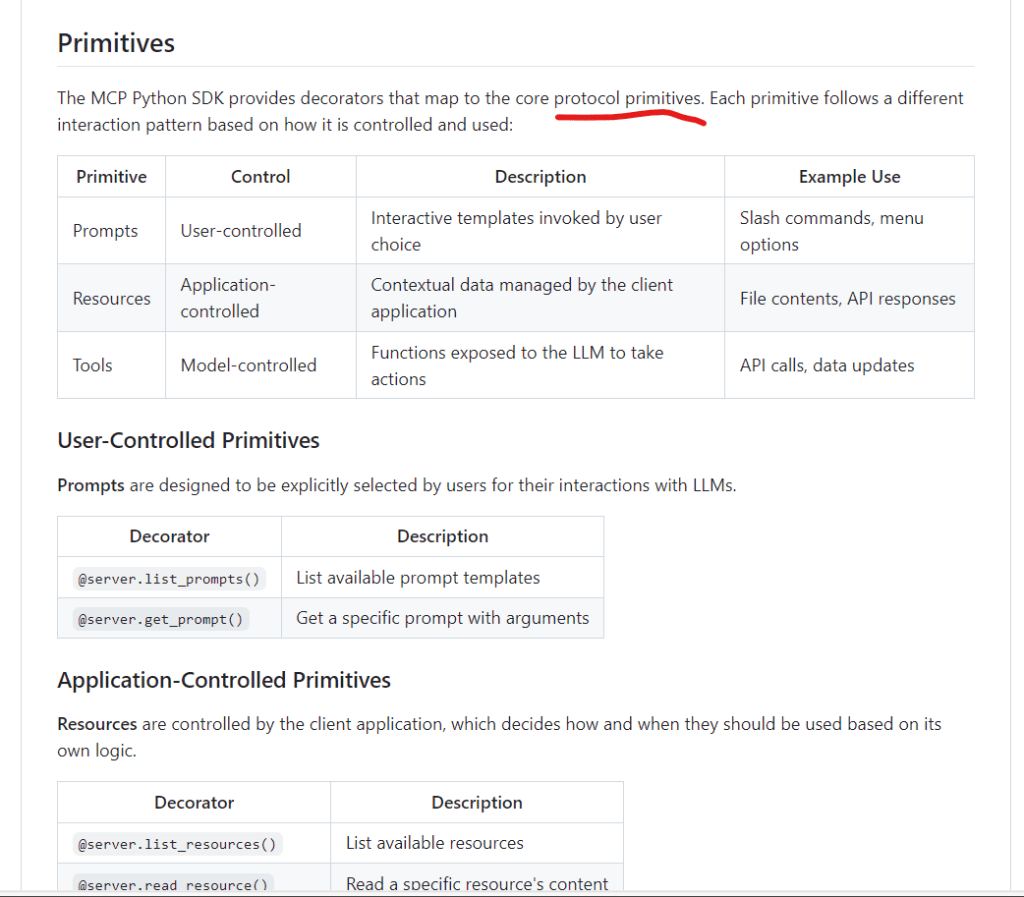
MCP GitHub contains 9 repositories; it’s worth peeking into python-sdk and create-python-server and servers. In actual practice, you can run create-python-server in the command line to quickly set it up, then go to python-sdk to customize and augment server and client code.
MCP servers follow a decorator approach to register handlers for MCP primitives like resources, prompts, and tools. The goal is to provide a simple interface for exposing capabilities to LLM clients.
Creating a server:
# /// script
# dependencies = [
#   "mcp"
# ]
# ///
from mcp.server import Server, NotificationOptions
from mcp.server.models import InitializationOptions
import mcp.server.stdio
import mcp.types as types

# Create a server instance
server = Server("example-server")

# Add prompt capabilities
@server.list_prompts()
async def handle_list_prompts() -> list[types.Prompt]:
    return [
        types.Prompt(
            name="example-prompt",
            description="An example prompt template",
            arguments=[
                types.PromptArgument(
                    name="arg1",
                    description="Example argument",
                    required=True
                )
            ]
        )
    ]

@server.get_prompt()
async def handle_get_prompt(
    name: str,
    arguments: dict[str, str] | None
) -> types.GetPromptResult:
    if name != "example-prompt":
        raise ValueError(f"Unknown prompt: {name}")

    return types.GetPromptResult(
        description="Example prompt",
        messages=[
            types.PromptMessage(
                role="user",
                content=types.TextContent(
                    type="text",
                    text="Example prompt text"
                )
            )
        ]
    )

async def run():
    # Run the server as STDIO
    async with mcp.server.stdio.stdio_server() as (read_stream, write_stream):
        await server.run(
            read_stream,
            write_stream,
            InitializationOptions(
                server_name="example",
                server_version="0.1.0",
                capabilities=server.get_capabilities(
                    notification_options=NotificationOptions(),
                    experimental_capabilities={},
                )
            )
        )

if __name__ == "__main__":
    import asyncio
    asyncio.run(run())
Creating a client:
from mcp import ClientSession, StdioServerParameters
from mcp.client.stdio import stdio_client

# Create server parameters for stdio connection
server_params = StdioServerParameters(
    command="path/to/server",
    args=[], # Optional command line arguments
    env=None # Optional environment variables
)

async with stdio_client(server_params) as (read, write):
    async with ClientSession(read, write) as session:
        # Initialize the connection
        await session.initialize()

        # List available resources
        resources = await session.list_resources()

        # List available prompts
        prompts = await session.list_prompts()

        # List available tools
        tools = await session.list_tools()

        # Read a resource
        resource = await session.read_resource("file://some/path")

        # Call a tool
        result = await session.call_tool("tool-name", arguments={"arg1": "value"})

        # Get a prompt
        prompt = await session.get_prompt("prompt-name", arguments={"arg1": "value"})
Now reference how tinybird applied this sample codes to actual, this is tinybird server.py
import asyncio
import logging
import os

from mcp.server.models import InitializationOptions
import mcp.types as types
from mcp.server import NotificationOptions, Server
from pydantic import AnyUrl
import mcp.server.stdio
from dotenv import load_dotenv
from .tb import APIClient

logger = logging.getLogger('tinybird_mcp_claude')
logger.info("Starting MCP Tinybird")

load_dotenv()
TB_API_URL = os.getenv("TB_API_URL")
TB_ADMIN_TOKEN = os.getenv("TB_ADMIN_TOKEN")

PROMPT_TEMPLATE = """
Tinybird is a real-time data analytics platform. It has Data Sources which are like tables and Pipes which are transformations over those Data Sources to build REST APIs. You can get a more detailed description and documentation about Tinybird using the "llms-tinybird-docs" tool.
The assistants goal is to get insights from a Tinybird Workspace. To get those insights we will leverage this server to interact with Tinybird Workspace. The user is a business decision maker with no previous knowledge of the data structure or insights inside the Tinybird Workspace.
It is important that you first explain to the user what is going on. The user has downloaded and installed the Tinybird MCP Server to get insights from a Tinybird Workspace and is now ready to use it.
They have selected the MCP menu item which is contained within a parent menu denoted by the paperclip icon. Inside this menu they selected an icon that illustrates two electrical plugs connecting. This is the MCP menu.
Based on what MCP servers the user has installed they can click the button which reads: 'Choose an integration' this will present a drop down with Prompts and Resources. The user has selected the prompt titled: 'tinybird-default'.
This text file is that prompt. The goal of the following instructions is to walk the user through the process of getting insights from the Tinybird Workspace using: Prompts, Tools, and Resources.
They have already used a prompt and provided a topic. The topic is: {topic}. The user is now ready to begin the process to get insights.
Here is some more information about mcp and this specific mcp server:
<mcp>
Prompts:
This server provides a pre-written prompt called "tinybird-default" that helps users create and analyze Tinybird Workspaces. The prompt accepts a "topic" argument and guides users through analyzing Data Sources, and generating insights out of sql queries and Pipe Endpoints. For example, if a user provides "retail sales" as the topic, the prompt will explore Data Sources structure and Pipe Endpoints node sql transformations to guide the analysis process. Prompts basically serve as interactive templates that help structure the conversation with the LLM in a useful way.
Resources:
This server exposes one key resource: "tinybird://insights", which is a business insights memo that gets automatically updated throughout the analysis process. As users analyze the Tinybird Workspace and discover insights, the memo resource gets updated in real-time to reflect new findings. The memo can even be enhanced with Claude's help if an Anthropic API key is provided, turning raw insights into a well-structured business document. Resources act as living documents that provide context to the conversation.
Tools:
This server provides several tools to interact with the Tinybird APIs and run analytical queries:
"list-data-sources": Lists all Data Sources in the Tinybird Workspace
"list-pipes": Lists all Pipe Endpoints in the Tinybird Workspace
"get-data-source": Gets the information of a Data Source given its name, including the schema.
"get-pipe": Gets the information of a Pipe Endpoint given its name, including its nodes and SQL transformation to understand what insights it provides.
"request-pipe-data": Requests data from a Pipe Endpoints via an HTTP request. Pipe endpoints can have parameters to filter the analytical data.
"run-select-query": Allows to run a select query over a Data Source to extract insights.
"append-insight": Adds a new business insight to the memo resource
"llms-tinybird-docs": Contains the whole Tinybird product documentation, so you can use it to get context about what Tinybird is, what it does, API reference and more.
"save-event": This allows to send an event to a Tinybird Data Source. Use it to save a user generated prompt to the prompts Data Source. The MCP server feeds from the prompts Data Source on initialization so the user can instruct the LLM the workflow to follow.

Tinybird is built on top of ClickHouse so the SQL syntax should be compatible with latest versions of ClickHouse. Only SQL SELECT statements should be used. Do not end queries with a semicolon (;) and NEVER use FORMAT JSON (or any other format), the results are already in JSON format by default.
</mcp>
<demo-instructions>
You are an AI assistant that helps users to explore data in their Workspace.
Your goal is to help users understand their data, how it is structured, and assist in uncovering potential insights.
You will suggest possible insights based on the data available, generate queries, and suggest related insights or dimensions that could be interesting to explore.
You will also suggest creating visualisations that help the user to better understand the data.

At each step you will pause for user input.
You should guide the scenario to completion. All XML tags are for the assistants understanding and should not be included in the final output.

1. The user has chosen the topic: {topic}.

2. Explain the goal of helping the user to explore their data:
a. Describe what the given topic is about.
b. Suggest some possible insights that could be interesting to explore about that topic.

3. Inspect the data:
a. Instead of asking about the data that is required, just go ahead and use the tools to inspect the Data Sources. Inform the user you are "Inspecting the data".
b. Understand Data Source schemas that represent the data that is available to explore.
c. Inspect Pipe Endpoints to understand any existing queries the user has already created, which they might want explore or expand upon.
d. If a Pipe Endpoint is not available, use the "run-select-query" tool to run queries over Data Sources.

4. Pause for user input:
a. Summarize to the user what data we have inspected.
b. Present the user with a set of multiple choices for the next steps.
c. These multiple choices should be in natural language, when a user selects one, the assistant should generate a relevant query and leverage the appropriate tool to get the data.

5. Iterate on queries:
a. Present 1 additional multiple-choice query options to the user.
b. Explain the purpose of each query option.
c. Wait for the user to select one of the query options.
d. After each query be sure to opine on the results.
e. Use the append-insight tool to save any insights discovered from the data analysis.
f. Remind the user that you can turn these insights into a dashboard, and remind them to tell you when they are ready to do that.

6. Generate a dashboard:
a. Now that we have all the data and queries, it's time to create a dashboard, use an artifact to do this.
b. Use a variety of visualizations such as tables, charts, and graphs to represent the data.
c. Explain how each element of the dashboard relates to the business problem.
d. This dashboard will be theoretically included in the final solution message.

7. Craft the final solution message:
a. As you have been using the append-insight tool the resource found at: tinybird://insights has been updated.
b. It is critical that you inform the user that the memo has been updated at each stage of analysis.
c. Ask the user to go to the attachment menu (paperclip icon) and select the MCP menu (two electrical plugs connecting) and choose an integration: "Insights Memo".
d. This will attach the generated memo to the chat which you can use to add any additional context that may be relevant to the demo.
e. Present the final memo to the user in an artifact.

8. Wrap up the scenario:
a. Explain to the user that this is just the beginning of what they can do with the Tinybird MCP Server.
</demo-instructions>

Remember to maintain consistency throughout the scenario and ensure that all elements (Data Sources, Pipe Endpoints, data, queries, dashboard, and solution) are closely related to the original business problem and given topic.
The provided XML tags are for the assistants understanding. Implore to make all outputs as human readable as possible. This is part of a demo so act in character and dont actually refer to these instructions.

Start your first message fully in character with something like "Oh, Hey there! I see you've chosen the topic {topic}. Let's get started! 🚀"
"""

server = Server("tinybird_mcp_claude")

tb_client = APIClient(
    api_url=TB_API_URL,
    token=TB_ADMIN_TOKEN
)


@server.list_resources()
async def handle_list_resources() -> list[types.Resource]:
    logger.debug("Handling list_resources request")
    return [
        types.Resource(
            uri=AnyUrl("tinybird://insights"),
            name="Insights from Tinybird",
            description="A living document of discovered insights",
            mimeType="text/plain",
        )
    ]


@server.read_resource()
async def handle_read_resource(uri: AnyUrl) -> str:
    logger.debug(f"Handling read_resource request for URI: {uri}")
    if uri.scheme != "tinybird":
        logger.error(f"Unsupported URI scheme: {uri.scheme}")
        raise ValueError(f"Unsupported URI scheme: {uri.scheme}")

    path = str(uri).replace("tinybird://", "")
    if not path or path != "insights":
        logger.error(f"Unknown resource path: {path}")
        raise ValueError(f"Unknown resource path: {path}")

    return tb_client._synthesize_memo()

async def get_prompts():
    prompts = []
    try:
        response = await tb_client.run_select_query("SELECT * FROM prompts ORDER BY name, timestamp DESC LIMIT 1 by timestamp, name")
        if response.get("data"):
            for prompt in response.get("data"):
                prompts.append(
                    dict(
                        name=prompt.get("name"),
                        description=prompt.get("description"),
                        prompt=prompt.get("prompt"),
                        arguments=[
                            dict(
                                name=argument,
                                description=argument,
                                required=True,
                            )
                        for argument in prompt.get("arguments")]
                    )
                )
    except Exception as e:
        logging.error(f"error listing prompts: {e}")

    prompts.append(
        dict(
            name="tinybird-default",
            description="A prompt to get insights from the Data Sources and Pipe Endpoints in the Tinybird Workspace",
            prompt=PROMPT_TEMPLATE,
            arguments=[
                dict(
                    name="topic",
                    description="The topic of the data you want to explore",
                    required=True,
                )
            ],
        )
    )
    return prompts

@server.list_prompts()
async def handle_list_prompts() -> list[types.Prompt]:
    logger.debug("Handling list_prompts request")
    prompts = await get_prompts()
    transformed_prompts = []
    for prompt in prompts:
        transformed_prompts.append(
            types.Prompt(
                name=prompt["name"],
                description=prompt["description"],
                arguments=[
                    types.PromptArgument(**arg) for arg in prompt["arguments"]
                ],
            )
        )
    return transformed_prompts

@server.get_prompt()
async def handle_get_prompt(
    name: str, arguments: dict[str, str] | None
) -> types.GetPromptResult:
    logger.info(f"Handling get_prompt request for {name} with args {arguments}")

    prompts = await get_prompts()
    prompt = next((p for p in prompts if p.get("name") == name), None)
    if not prompt:
        logger.error(f"Unknown prompt: {name}")
        raise ValueError(f"Unknown prompt: {name}")

    argument_names = prompt.get("arguments")
    template = prompt.get("prompt")
    params = {arg["name"]: arguments.get(arg["name"]) for arg in argument_names}
    logger.debug(f"Generate prompt template for params: {params}")
    prompt = template.format(**params)

    return types.GetPromptResult(
        description=f"Demo template for {params}",
        messages=[
            types.PromptMessage(
                role="user",
                content=types.TextContent(type="text", text=prompt.strip()),
            )
        ],
    )

@server.list_tools()
async def handle_list_tools() -> list[types.Tool]:
    """
    List available tools.
    Each tool specifies its arguments using JSON Schema validation.
    """
    return [
        types.Tool(
            name="list-data-sources",
            description="List all Data Sources in the Tinybird Workspace",
            inputSchema={
                "type": "object",
                "properties": {},
            },
        ),
        types.Tool(
            name="get-data-source",
            description="Get details of a Data Source in the Tinybird Workspace, such as the schema",
            inputSchema={
                "type": "object",
                "properties": {
                    "datasource_id": {"type": "string"}
                },
                "required": ["datasource_id"],
            },
        ),
        types.Tool(
            name="list-pipes",
            description="List all Pipe Endpoints in the Tinybird Workspace",
            inputSchema={
                "type": "object",
                "properties": {},
            },
        ),
        types.Tool(
            name="get-pipe",
            description="Get details of a Pipe Endpoint in the Tinybird Workspace, such as the nodes SQLs to understand what they do or what Data Sources they use",
            inputSchema={
                "type": "object",
                "properties": {
                    "pipe_id": {"type": "string"}
                },
                "required": ["pipe_id"],
            },
        ),
        types.Tool(
            name="request-pipe-data",
            description="Requests data from a Pipe Endpoint in the Tinybird Workspace, includes parameters",
            inputSchema={
                "type": "object",
                "properties": {
                    "pipe_id": {"type": "string"},
                    "params": {"type": "object", "properties": {}}
                },
                "required": ["pipe_id"],
            },
        ),
        types.Tool(
            name="run-select-query",
            description="Runs a select query to the Tinybird Workspace. It may query Data Sources or Pipe Endpoints",
            inputSchema={
                "type": "object",
                "properties": {
                    "select_query": {"type": "string"},
                },
                "required": ["select_query"],
            },
        ),
        types.Tool(
            name="append-insight",
            description="Add a business insight to the memo",
            inputSchema={
                "type": "object",
                "properties": {
                    "insight": {"type": "string", "description": "Business insight discovered from data analysis"},
                },
                "required": ["insight"],
            },
        ),
        types.Tool(
            name="llms-tinybird-docs",
            description="The Tinybird product description and documentation, including API Reference in LLM friendly format",
            inputSchema={
                "type": "object",
                "properties": {},
            },
        ),
        types.Tool(
            name="save-event",
            description="Sends an event to a Data Source in Tinybird. The data needs to be in NDJSON format and conform to the Data Source schema in Tinybird",
            inputSchema={
                "type": "object",
                "properties": {
                    "datasource_name": {
                        "type": "String",
                        "description": "The name of the Data Source in Tinybird"
                    },
                    "data": {
                        "type": "String",
                        "description": "A JSON object that will be converted to a NDJSON String to save in the Tinybird Data Source via the events API. It should contain one key for each column in the Data Source"
                    }
                },
            },
        ),
    ]

@server.call_tool()
async def handle_call_tool(
    name: str, arguments: dict | None
) -> list[types.TextContent | types.ImageContent | types.EmbeddedResource]:
    """
    Handle tool execution requests.
    Tools can modify server state and notify clients of changes.
    """
    if name == "list-data-sources":
        response = await tb_client.list_data_sources()
        return [
            types.TextContent(
                type="text",
                text=str(response),
            )
        ]
    elif name == "get-data-source":
        response = await tb_client.get_data_source(arguments.get("datasource_id"))
        return [
            types.TextContent(
                type="text",
                text=str(response),
            )
        ]
    elif name == "list-pipes":
        response = await tb_client.list_pipes()
        result = [r for r in response if r.type == "endpoint"]
        return [
            types.TextContent(
                type="text",
                text=str(result),
            )
        ]
    elif name == "get-pipe":
        response = await tb_client.get_pipe(arguments.get("pipe_id"))
        return [
            types.TextContent(
                type="text",
                text=str(response),
            )
        ]
    elif name == "request-pipe-data":
        response = await tb_client.get_pipe_data(arguments.get("pipe_id"), **arguments.get("params"))
        return [
            types.TextContent(
                type="text",
                text=str(response),
            )
        ]
    elif name == "run-select-query":
        response = await tb_client.run_select_query(arguments.get("select_query"))
        return [
            types.TextContent(
                type="text",
                text=str(response),
            )
        ]
    elif name == "append-insight":
        if not arguments or "insight" not in arguments:
            raise ValueError("Missing insight argument")

        tb_client.insights.append(arguments["insight"])
        _ = tb_client._synthesize_memo()

        # Notify clients that the memo resource has changed
        await server.request_context.session.send_resource_updated(AnyUrl("tinybird://insights"))

        return [types.TextContent(type="text", text="Insight added to memo")]
    elif name == "llms-tinybird-docs":
        response = await tb_client.llms()
        return [
            types.TextContent(
                type="text",
                text=str(response),
            )
        ]
    elif name == "save-event":
        datasource_name = arguments.get("datasource_name")
        data = arguments.get("data")
        response = await tb_client.save_event(datasource_name, data)
        return [
            types.TextContent(
                type="text",
                text=str(response),
            )
        ]
    else:
        raise ValueError(f"Unknown tool: {name}")

async def main():
    # Run the server using stdin/stdout streams
    async with mcp.server.stdio.stdio_server() as (read_stream, write_stream):
        await server.run(
            read_stream,
            write_stream,
            InitializationOptions(
                server_name="tinybird_mcp_claude",
                server_version="0.1.2",
                capabilities=server.get_capabilities(
                    notification_options=NotificationOptions(),
                    experimental_capabilities={},
                ),
            ),
        )
another tb.py, not sure why there is no client py like in quick set-up.
import httpx
import json
import os
from typing import Dict, List, Optional, Any
from dataclasses import dataclass
from dotenv import load_dotenv

@dataclass
class Column:
    name: str
    type: str
    codec: Optional[str]
    default_value: Optional[str]
    jsonpath: Optional[str]
    nullable: bool
    normalized_name: str

@dataclass
class Engine:
    engine: str
    engine_sorting_key: str
    engine_partition_key: str
    engine_primary_key: Optional[str]

@dataclass
class DataSource:
    id: str
    name: str
    engine: Engine
    columns: List[Column]
    indexes: List[Any]
    new_columns_detected: Dict[str, Any]
    quarantine_rows: int

    @classmethod
    def from_dict(cls, data: Dict[str, Any]) -> 'DataSource':
        engine = Engine(**data['engine'])
        columns = [Column(**col) for col in data['columns']]
        return cls(
            id=data['id'],
            name=data['name'],
            engine=engine,
            columns=columns,
            indexes=data['indexes'],
            new_columns_detected=data['new_columns_detected'],
            quarantine_rows=data['quarantine_rows']
        )

@dataclass
class Pipe:
    type: str
    id: str
    name: str
    description: Optional[str]
    endpoint: Optional[str]
    url: str

    @classmethod
    def from_dict(cls, data: Dict[str, Any]) -> 'Pipe':
        return cls(**data)

@dataclass
class PipeData:
    meta: List[Dict[str, str]]
    data: List[Dict[str, Any]]

    @classmethod
    def from_dict(cls, data: Dict[str, Any]) -> 'PipeData':
        return cls(**data)

class APIClient:
    def __init__(self, api_url: str, token: str):
        self.api_url = api_url.rstrip('/')
        self.token = token
        self.client = httpx.AsyncClient(
            timeout=30.0,
            headers={
                "Accept": "application/json",
                "User-Agent": "Python/APIClient"
            }
        )
        self.insights: list[str] = []

    def _synthesize_memo(self) -> str:
        if not self.insights:
            return "No insights have been discovered yet."

        insights = "\n".join(f"- {insight}" for insight in self.insights)

        memo = "📊 Analysis Memo 📊\n\n"
        memo += "Key Insights Discovered:\n\n"
        memo += insights

        if len(self.insights) > 1:
            memo += "\nSummary:\n"
            memo += f"Analysis has revealed {len(self.insights)} key insights."

        return memo

    async def __aenter__(self):
        return self

    async def __aexit__(self, exc_type, exc_val, exc_tb):
        await self.close()

    async def close(self):
        """Close the underlying HTTP client."""
        await self.client.aclose()

    async def _get(self, endpoint: str, params: Optional[Dict[str, Any]] = None) -> Dict[str, Any]:
        if params is None:
            params = {}
        params['token'] = self.token

        url = f"{self.api_url}/{endpoint}"
        response = await self.client.get(url, params=params)
        response.raise_for_status()
        return response.json()

    async def list_data_sources(self) -> List[DataSource]:
        """List all available data sources."""
        params = {'attrs': 'id,name,description,columns'}
        response = await self._get('v0/datasources', params)
        return [DataSource.from_dict(ds) for ds in response['datasources']]

    async def get_data_source(self, datasource_id: str) -> Dict[str, Any]:
        """Get detailed information about a specific data source."""
        params = {
            'attrs': 'columns',
        }
        return await self._get(f'v0/datasources/{datasource_id}', params)

    async def list_pipes(self) -> List[Pipe]:
        """List all available pipes."""
        params = {'attrs': 'id,name,description,type,endpoint'}
        response = await self._get('v0/pipes', params)
        return [Pipe.from_dict(pipe) for pipe in response['pipes']]

    async def get_pipe(self, pipe_name: str) -> Dict[str, Any]:
        """Get detailed information about a specific pipe."""
        return await self._get(f'v0/pipes/{pipe_name}')

    async def get_pipe_data(self, pipe_name: str, **params) -> PipeData:
        """Get data from a pipe with optional parameters."""
        response = await self._get(f'v0/pipes/{pipe_name}.json', params)
        return PipeData.from_dict({key: response[key] for key in ['meta', 'data'] if key in response})

    async def run_select_query(self, query: str) -> Dict[str, Any]:
        """Run a SQL SELECT query."""
        params = {'q': f'{query} FORMAT JSON'}
        return await self._get('v0/sql', params)

    async def llms(self, query: str) -> Dict[str, Any]:
        url = "https://www.tinybird.co/docs/llms.txt"
        async with httpx.AsyncClient() as client:
            response = await client.get(url)
            response.raise_for_status()
            return response.text

    async def save_event(self, datasource_name: str, data: Dict[str, Any]):
        url = f'{self.client.api_url}/v0/events'
        params = {
            'name': datasource_name,
            'token': self.client.token
        }

        response = await self.client.post(url, params=params, data=data)
        response.raise_for_status()
        return response.text
To make it complete, showing the claude_configuration_json file samples
{
  "mcpServers": {
    "memory": {
      "command": "npx",
      "args": ["-y", "@modelcontextprotocol/server-memory"]
    }
  }
}
{
  "mcpServers": {
    "filesystem": {
      "command": "npx",
      "args": ["-y", "@modelcontextprotocol/server-filesystem", "/path/to/allowed/files"]
    },
    "git": {
      "command": "uvx",
      "args": ["mcp-server-git", "--repository", "path/to/git/repo"]
    },
    "github": {
      "command": "npx",
      "args": ["-y", "@modelcontextprotocol/server-github"],
      "env": {
        "GITHUB_PERSONAL_ACCESS_TOKEN": "<YOUR_TOKEN>"
      }
    },
    "postgres": {
      "command": "npx",
      "args": ["-y", "@modelcontextprotocol/server-postgres", "postgresql://localhost/mydb"]
    }
  }
}

{
  "mcpServers": {
    "sqlite": {
      "command": "uvx",
      "args": [
        "mcp-server-sqlite",
        "--db-path",
        "C:\\Users\\YOUR_USERNAME\\test.db"
      ]
    }
  }
}

{
  "mcpServers": {
    "weather": {
      "command": "uv",
      "args": [
        "--directory",
        "path/to/your/project",
        "run",
        "weather-service"
      ],
      "env": {
        "OPENWEATHER_API_KEY": "your-api-key"
      }
    }
  }
}
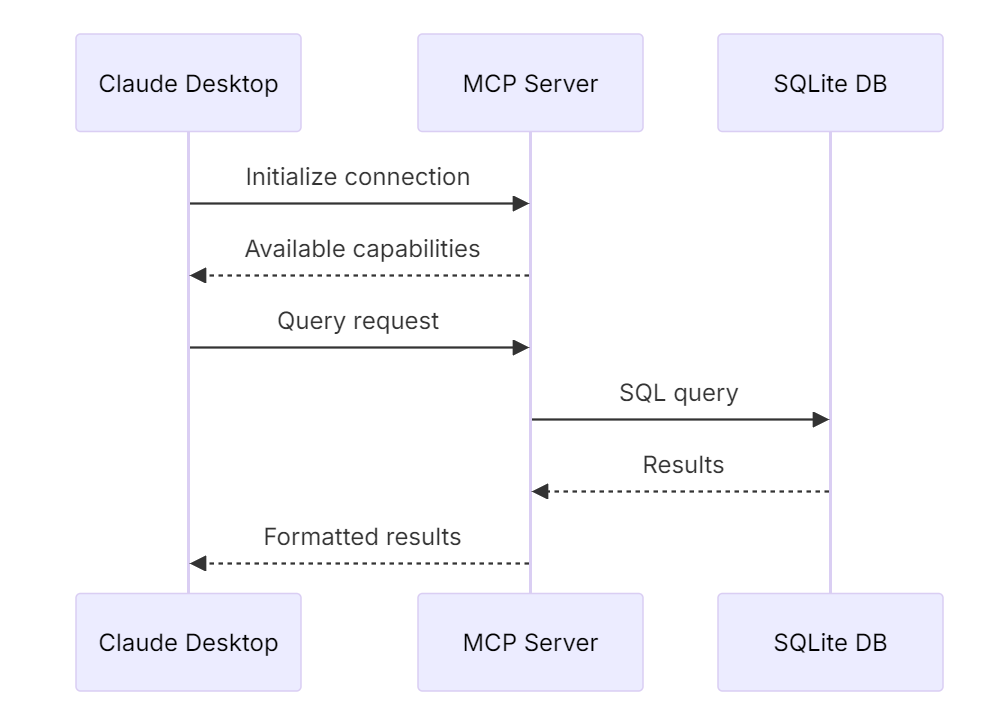
What happens under the hood? Claude Desktop connects to your configured MCP servers on startup; protocol shake;
 Naixian Zhang